

Generator Node
Learn how the Generator Node in Giselle uses AI models to generate text, images, and more, forming the core of your AI flows.
Generator Node in Giselle
The Generator Node is the central component for AI-driven content creation in Giselle. It allows you to harness the power of various advanced AI models to generate text and images based on your instructions. By configuring prompts, selecting models, and providing tools, you can create highly customized outputs for any flow.
The Generator Node is configured through the following sections in its settings panel:
- Model
- Prompt
- Advanced options
- Output
Prompt Tab
This is where you provide the instructions for the AI model. Write a clear and detailed prompt describing the task you want the AI to perform. The output generated by the model will appear at the bottom of this panel, allowing you to quickly see the results.
Referencing other node output: If you want to insert the output of another node as a variable within your prompt, you can click the @ key to display a suggestion list. From this list, you can select the output of another node that is connected to the current node's input and insert it into your prompt.
You can also test the node individually by clicking the Generate button, which runs only this node without executing the entire flow.
Model Tab
In the Model tab, you can select the specific AI model you want to use for the generation task. Giselle provides access to a wide range of models from leading providers.
- Select a Model: Choose from a list of available models, such as OpenAI's
gpt-4o, Anthropic'sclaude-4-opus, or Google'sgemini-2.5-pro. - Configure Parameters: Depending on the selected model, you can adjust various AI Parameters like
TemperatureorMax Tokensto fine-tune the output.
For more details on the available models from each provider, see our documentation:
Advanced options
Advanced options lets you configure output format and tool settings in detail.
Output Format
Output Format specifies the output format of the Generator Node.
- Text (default): Outputs in text format.
- JSON: Outputs structured data in JSON format.
When you select JSON, a Set Schema button appears, allowing you to open the Structured Output schema definition dialog.
Defining a Structured Output Schema
The structured output schema is defined using a form-based interface.
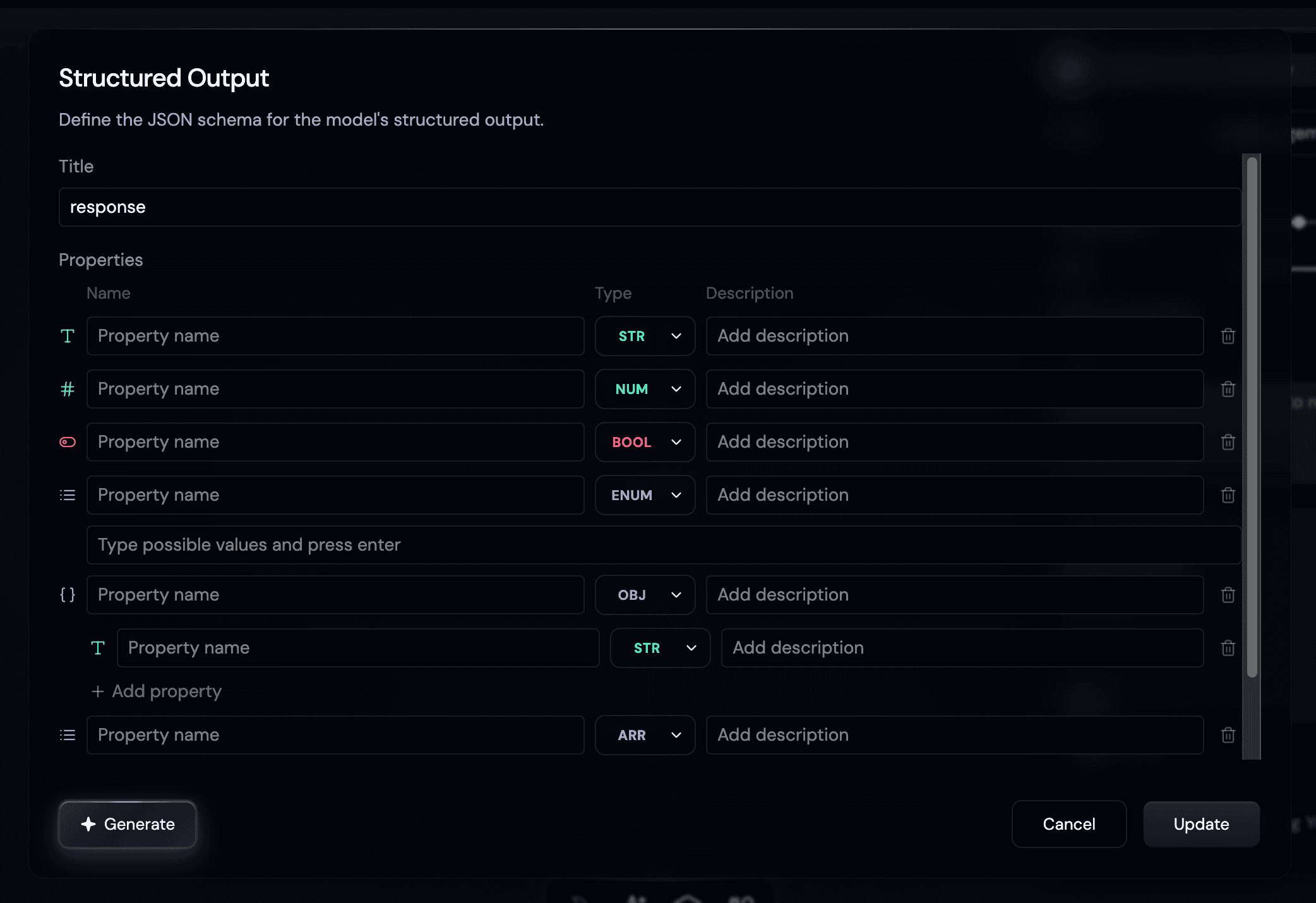
- Title: Schema name (required)
- Properties: Field list
- Name: Field name (required)
- Type: STR / NUM / BOOL / ENUM / OBJ / ARR
- Description: Field description
- Add property: Add a new field
- Generate: Enter a description of the expected output, and AI will generate an appropriate schema and auto-fill the form
Nested types work as follows:
- OBJ: Define additional properties within an object (e.g.,
nameandageinsideuser) - ARR: Select a single element type for the array (e.g., an array of strings)
- ENUM: Define a list of allowed output values (e.g.,
low,medium,high)
Input constraints:
- Title is required
- Field names are required and may only contain alphanumeric characters and underscores (
_) - Duplicate field names at the same level are not allowed
There are no explicit limits on object nesting depth, number of properties, or number of ENUM options.
Tools
The Tools section within Advanced options lets you configure external access for the AI. This is useful for creating more dynamic and powerful flows.
Currently, the following tools are supported:
We are continuously working to add support for more tools in the future.
Output of the Generator Node
The primary output of a Generator Node is the content it creates (e.g., a block of text or an image). This output can be connected to the input of other nodes, allowing you to chain AI tasks together. For example, the text generated by one node can be used as the input for another node that summarizes or translates it.