

Data Store Node
Learn how to use the Data Store Node to integrate PostgreSQL databases into your workflows.
This feature is currently in Private Preview. Access is limited to select users. Features may change without notice.
Data Store Node in Giselle
The Data Store Node is a specialized "variable node" that provides PostgreSQL database connections registered in team settings to your workflow. When combined with the Data Query Node, you can execute SQL queries against databases from within your workflow and process the results with a Generator Node or other nodes.
Prerequisites
To use the Data Store Node, you must first register a database connection. See How to Create a Data Store for details.
Adding a Data Store Node to Your Workflow
Add the Node
- From the toolbar at the bottom of the canvas, click the Context icon.
- Select Data Store from the popup menu to add the node to your Workspace.
Configure the Data Store
- When first added, the node displays a "Requires setup" status.
- Select the node to open the settings panel on the right.
- Click the Data Store dropdown menu and select the Data Store you created earlier.
Complete Setup
Once configured, the node on the canvas updates to display the selected Data Store's name. The node is now ready to be connected to a Data Query Node in your workflow.
Using in Workflows
The Data Store Node is designed to be used in combination with a Data Query Node. It provides the database connection for a Data Query Node to execute queries.
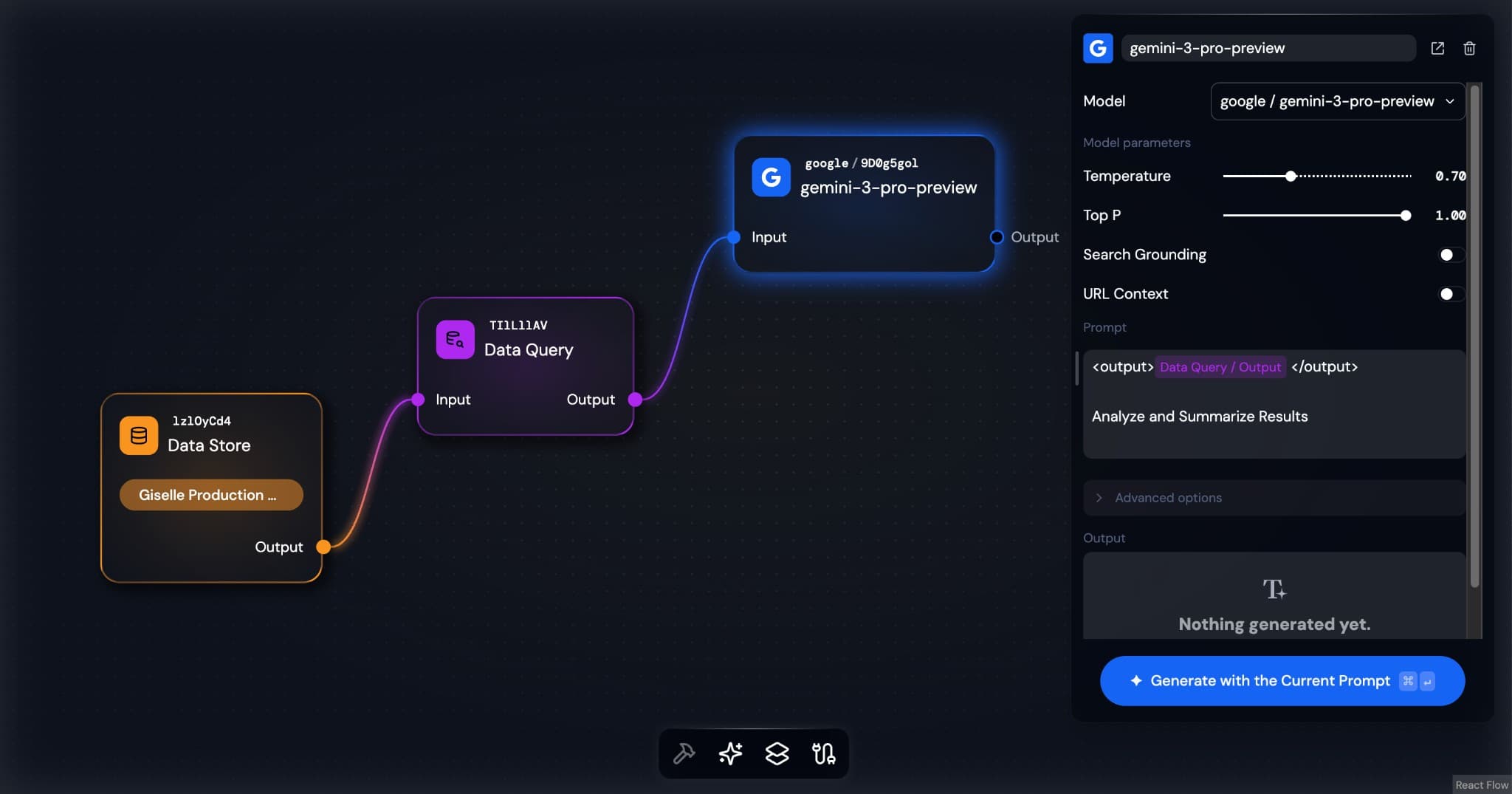
- Connect the output: You need to connect the Data Store Node's "output" to the Data Query Node's input.
- Execute queries: The Data Query Node receives SQL queries, executes them against the connected database, and passes the results to subsequent nodes (such as Generator Node) for processing, analysis, or summarization.
Workflow Example
Advanced Use Case
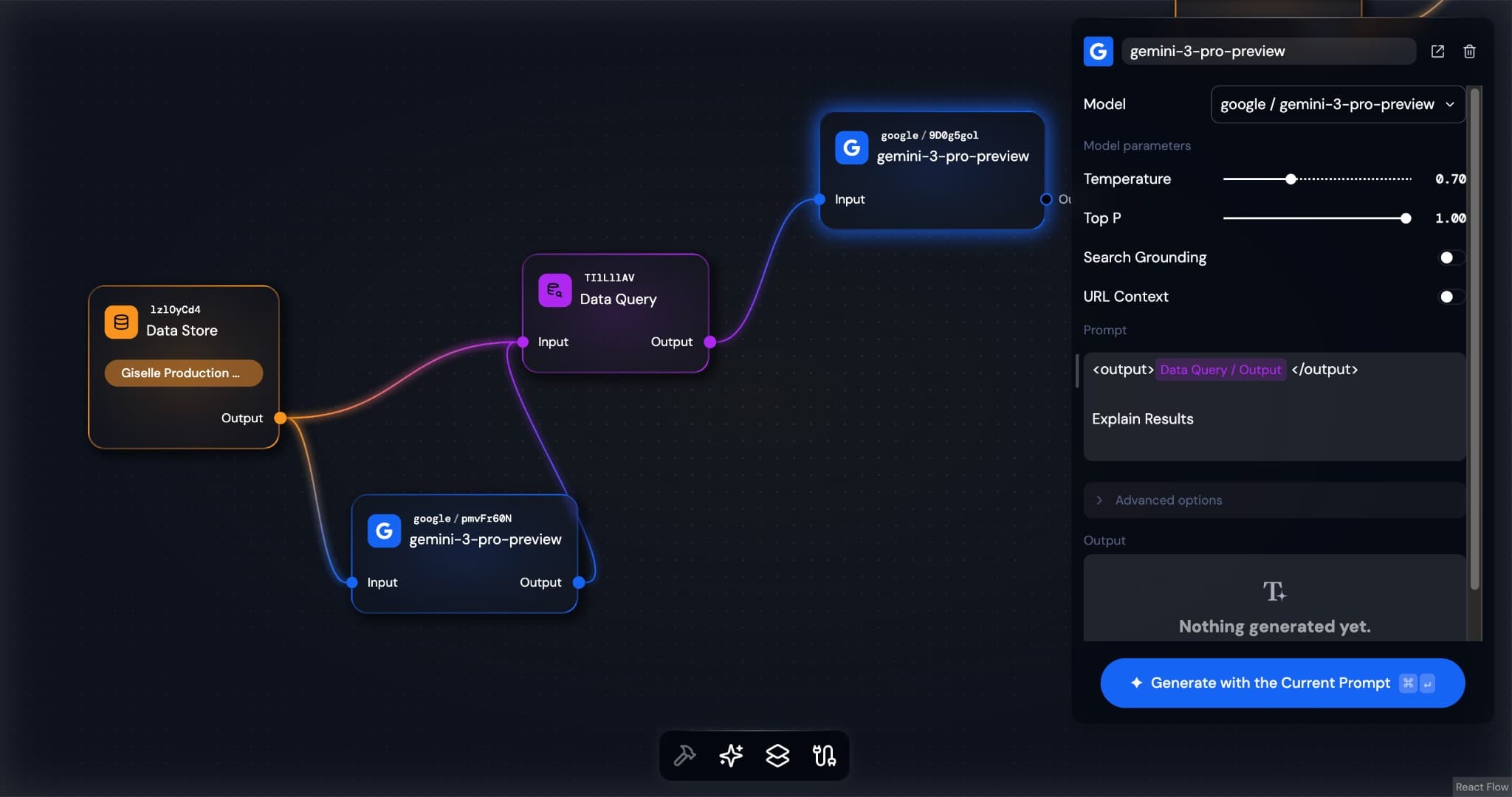
By combining with a Generator Node, you can generate SQL from natural language and execute dynamic queries:
Node Output
The Data Store Node's output provides a reference to the connected database's schema. By connecting this output to a Generator Node, AI models can understand the database structure (table names and column names) and generate appropriate SQL queries.
Error Handling
If you encounter issues with the Data Store Node, possible reasons include:
- Data Store not selected: Select a Data Store in the node's property panel.
- Data Store was deleted: If the selected Data Store was deleted, a "Requires setup" status will appear. Select a different Data Store.
- Data Store not found: Verify that the Data Store has been created in team settings.
For details on error messages and limitations, see the Data Stores documentation.