

Data Query Node
Learn how to use the Data Query Node to execute SQL queries against Data Store Node.
This feature is currently in Private Preview. Access is limited to select users. Features may change without notice.
Data Query Node in Giselle
The Data Query Node is a Giselle component designed to execute SQL queries against a connected Data Store Node and return results in JSON format.
It works with the following nodes and serves as an essential building block for leveraging databases within workflows:
- Data Store Node: Provides database connections registered in team settings to your workflow.
How to Use Data Query Node
1. Add Data Query Node
- From the toolbar at the bottom of the canvas, click the Context icon.
- Select Data Query from the popup menu to add the node to your Workspace.
2. Connect Data Store Node
The Data Query Node requires input from a Data Store Node to function. You need to connect the Data Store Node's output to the Data Query Node's input. Until a Data Store Node is connected, the Data Query Node displays "No data sources connected • Connect a Data Store node".
Once connected, Data Store information appears at the top of the query editor:
- Connected: Data Store is properly configured
- Requires setup: Select a connection in the Data Store Node
3. Write and Execute Queries
Once a Data Store Node is connected, you can configure the Data Query Node:
- Enter query: Enter your SQL query in the "SQL Query" input field in the settings panel. Type
@to reference outputs from other nodes. - Execute query: Click the Run Query button to execute the query against the connected database.
4. Review Results
After the query executes, results are displayed directly in the node's panel. Results include:
- A summary of returned rows (e.g., "5 rows returned")
- The executed query (with parameters expanded)
- Result data (JSON format, collapsible)
If no rows are returned, "Query executed successfully but returned no rows." is displayed.
Creating Dynamic Queries
From the Data Query Node's settings panel, you can use @ to reference outputs from other nodes within your query. This allows you to build dynamic queries based on user input or AI-generated values.
Use Case: Leveraging Databases in Workflows
The primary purpose of the Data Query Node is to enable leveraging databases in workflows. By providing information retrieved from databases to AI models, you can generate more accurate and fact-based responses.
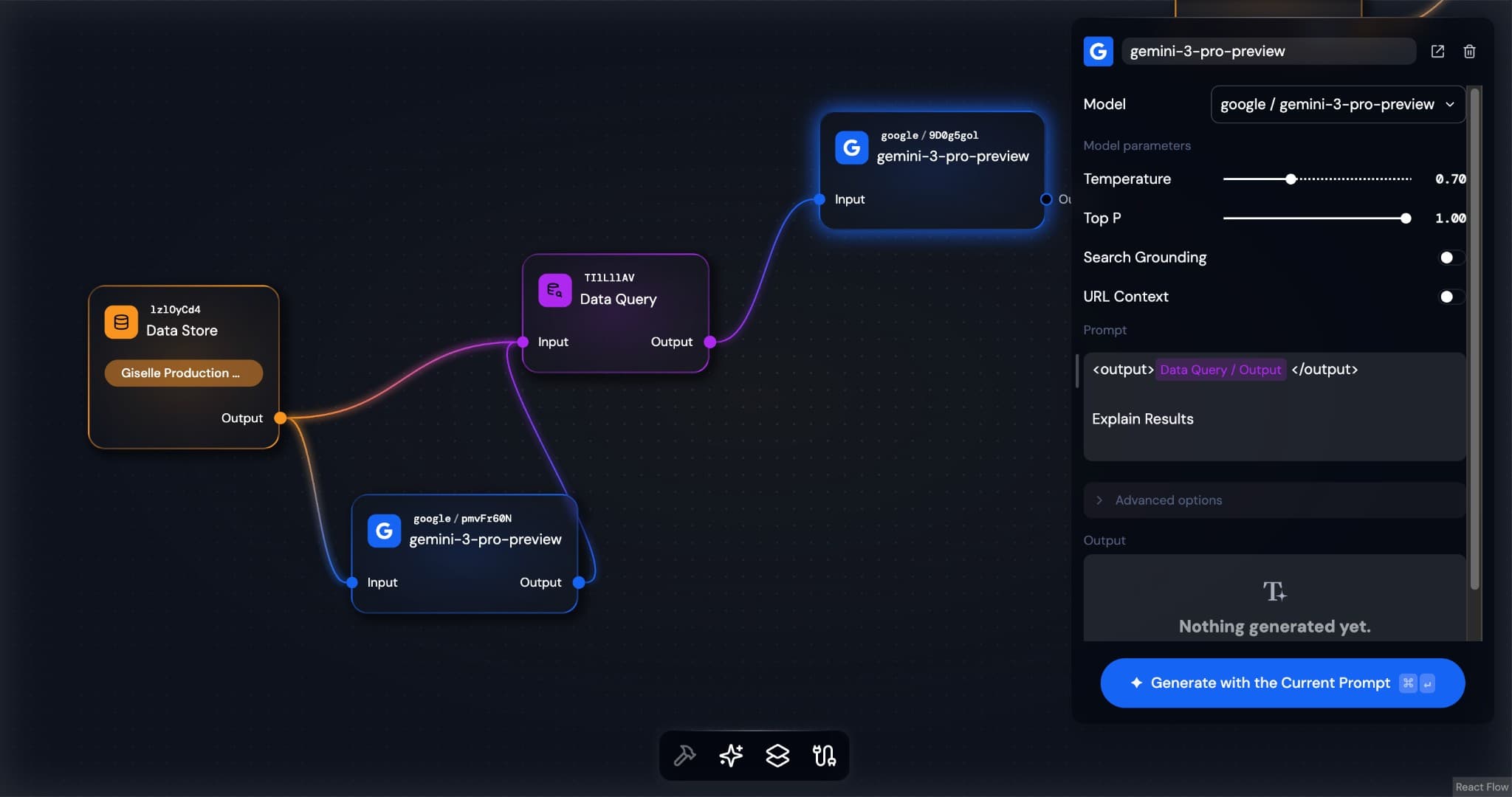
A typical workflow in Giselle looks like this:
- Data Store Node: Provides the database connection registered in team settings.
- Data Query Node: Executes SQL queries and retrieves relevant data from the database.
- Generator Node: Receives query results, analyzes and summarizes the data, and generates user-friendly responses.
For more advanced workflows, you can reference database schema in Generator Node to generate SQL from natural language:
Data Query Node Output
The Data Query Node's "result" output contains query results in JSON format. This structured data can be passed to subsequent nodes (most commonly a Generator Node) to serve as context for data analysis or response generation.
Output includes:
- rows: Array of query results
- rowCount: Number of rows returned
- query: The executed query
For details on configuring database connections, see the Data Stores documentation and Data Store Node documentation.